Want to send a cable box, games console or camera feed to TVs around your home or business? Converting HDMI to IPTV makes it possible. This guide from nobiptv explains what the process means, what equipment you need and the exact steps to get a clean stream on your network.
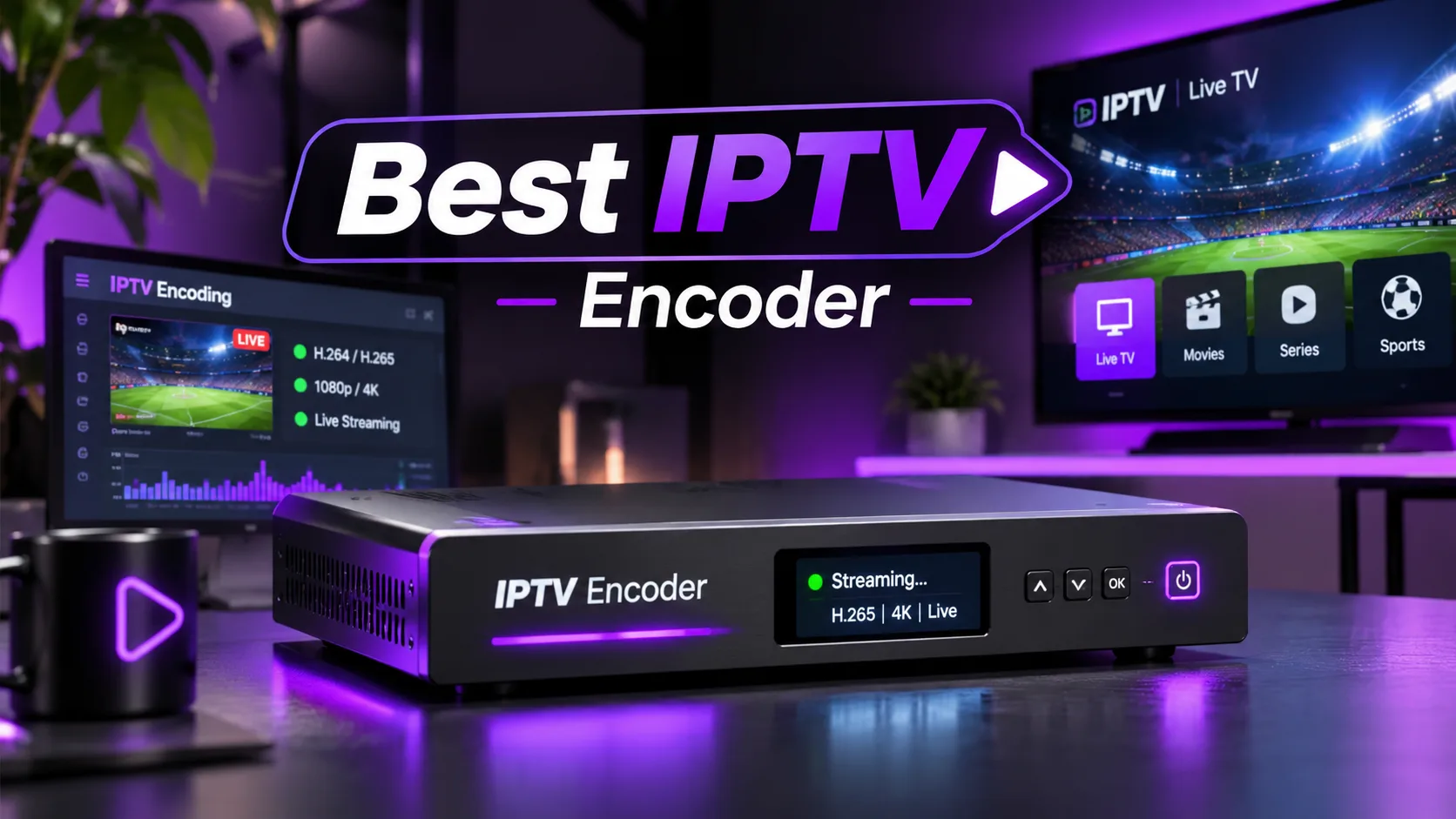
What Converting HDMI to IPTV Means
An HDMI source outputs uncompressed video that only travels a few metres over a cable. Converting it to IPTV means capturing that signal, compressing it and sending it as a stream over your Ethernet or Wi-Fi network, so any compatible TV, PC or phone on the network can watch it.
Common Reasons to Do It
- Share one satellite or cable receiver with several TVs
- Show a presentation or camera feed on screens across an office
- Distribute sport to every screen in a bar or restaurant
- Stream church services, events or classes to another room
What You Need
| Item | Purpose |
|---|---|
| HDMI encoder | Captures and compresses the HDMI signal into an IP stream |
| Network switch / router | Carries the stream to viewers (multicast support recommended) |
| Ethernet cables | Stable connection between encoder and network |
| Player devices | Smart TVs, set-top boxes, VLC on PC, or player apps |
8 Steps to Convert HDMI to IPTV
- Connect the source: plug your HDMI device into the encoder’s input.
- Connect the encoder to the network: use an Ethernet cable to your switch or router.
- Find the encoder’s IP address: check the manual, the device screen or your router’s client list.
- Open the web interface: type the IP address into a browser and log in.
- Choose codec and quality: H.264 at 4–8 Mbps suits HD; H.265 saves bandwidth for 4K.
- Select the output protocol: UDP multicast for local networks, HLS or RTMP for internet streaming.
- Start the stream: note the stream address the encoder shows.
- Play it on a device: open the address in VLC or a player app to confirm it works.
Without a Dedicated Encoder
For small, occasional use, a USB capture card and free software such as OBS can turn a computer into an encoder. It is cheap and flexible, but less reliable for 24/7 use than a dedicated box.
Network Tips
- Use wired connections for the encoder and main screens.
- Enable IGMP snooping on switches when using multicast.
- Separate TV traffic from guest Wi-Fi where possible.
Troubleshooting
- No picture: check HDCP – many protected sources block capture.
- Blocky video: raise the bitrate or reduce motion-heavy settings.
- Stuttering: look for network congestion or Wi-Fi drop-outs.
- Audio out of sync: adjust audio delay in the encoder settings.
Legal Note
Only stream content you have the right to distribute. Redistributing paid channels publicly usually requires a licence.
Frequently Asked Questions
Can I watch the stream outside my home?
Yes, with an internet protocol such as HLS or RTMP and the right router or server setup.
Is converting HDMI to IPTV the same as subscribing to a service like nobiptv?
No. Converting HDMI shares a signal you already have. A service like nobiptv provides ready-made live channels, sport and films over the internet with no encoder required.
Final Thoughts
With an encoder, a solid network and the steps above, turning HDMI into IPTV is straightforward. If you simply want live TV on all your screens without extra hardware, explore the nobiptv plans or check out more guides on the nobiptv blog.